Cloudflare

Cloudflare Reports

Generating Cloudflare Reports

We currently have access to Cloudflare, which allows us to generate analytics and log reports for customers. However, there are a few important limitations to keep in mind:

  • Reports can only include data from the last 3 months.

  • Each individual report can only cover a maximum of 30 days.

If a customer requests data for the past 3 months, you will need to generate one report per month.

Step-by-Step Guide to Generating Reports

1. Log in to Cloudflare

Go to https://www.cloudflare.com/ and log in using your email and password.

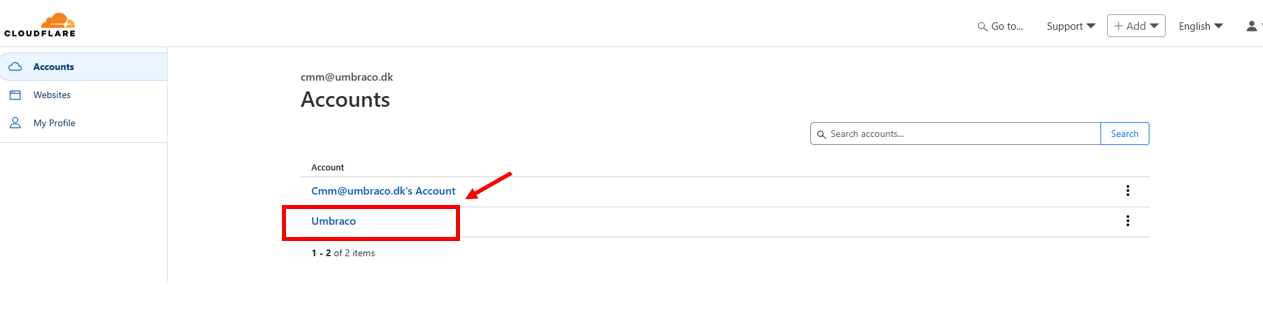
2. Select the Umbraco Account

Once logged in, choose the Umbraco account.

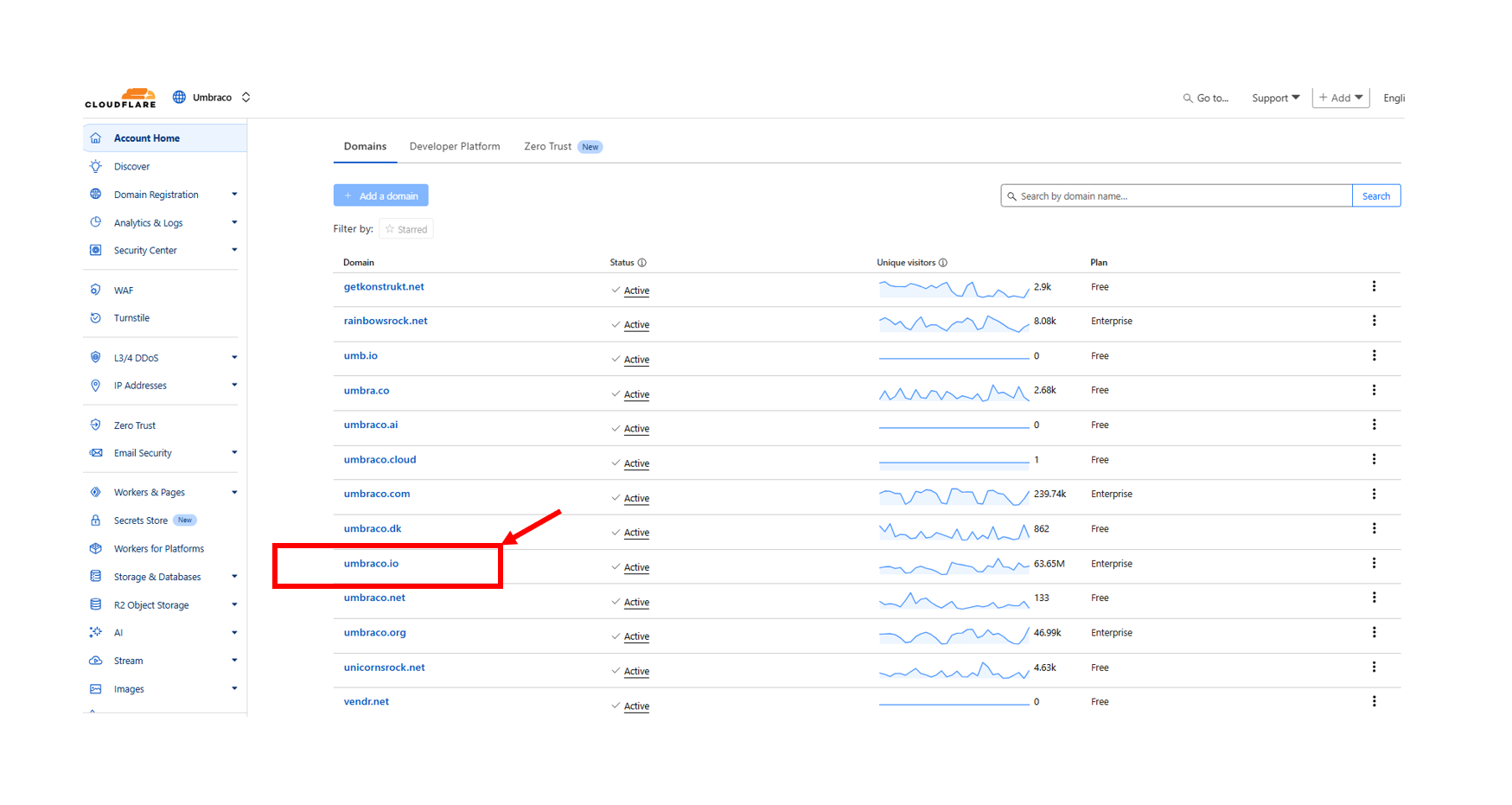
3. Choose the umbraco.io:

From the available list, select umbraco.io.

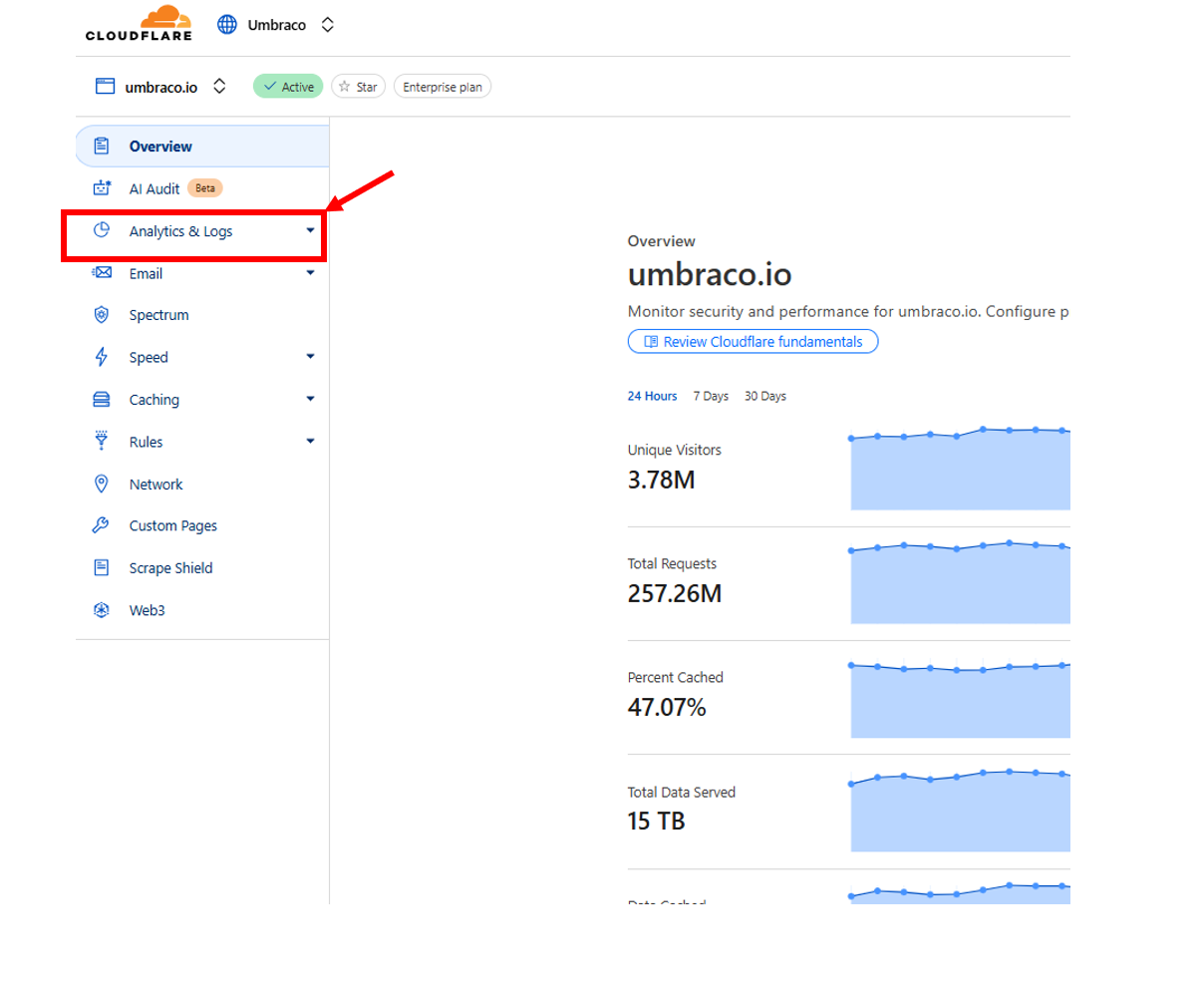
4. Access Analytics and Logs

On the left-hand menu, click on Analytics & Logs.

Important

 Avoid clicking other menu items to prevent unintentional changes.

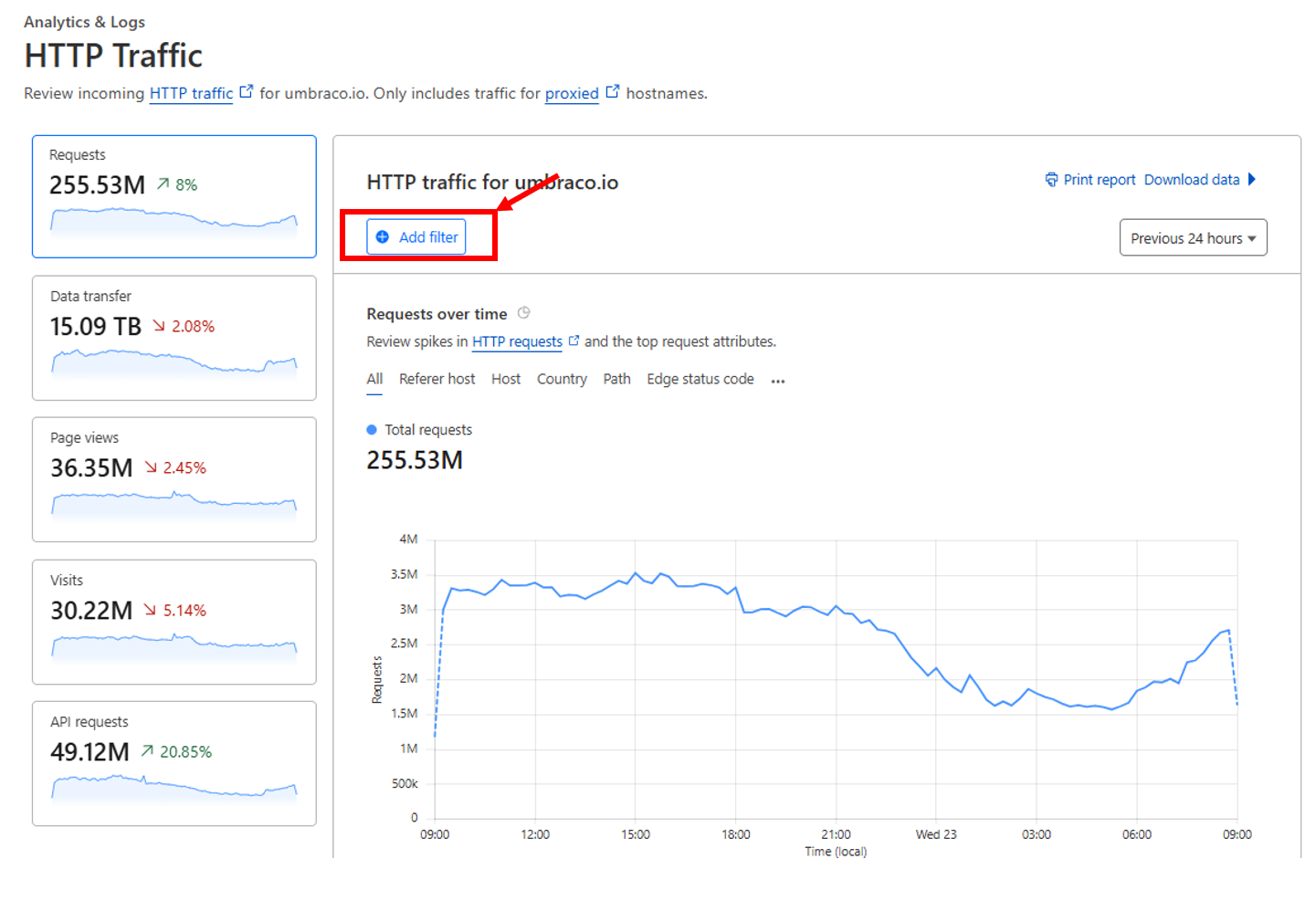
5. Apply a Hostname Filter

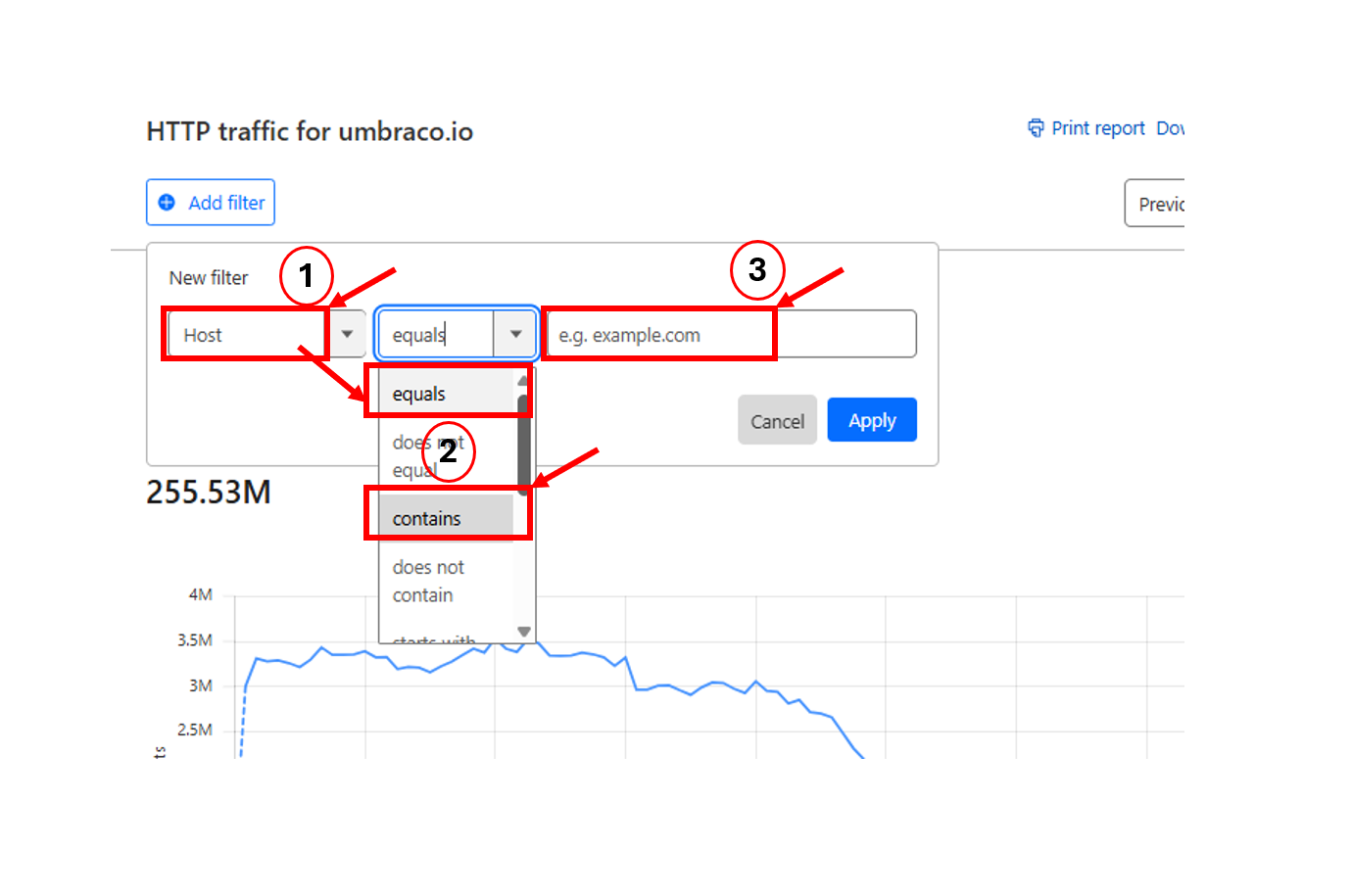
To view data for a specific hostname, create a filter:

  • Choose either contains or equals.

  • Contains is ideal when the domain has multiple associated subdomains.

  • Equals is best if you want to focus on one specific domain.

Then, input the hostname you wish to report on.

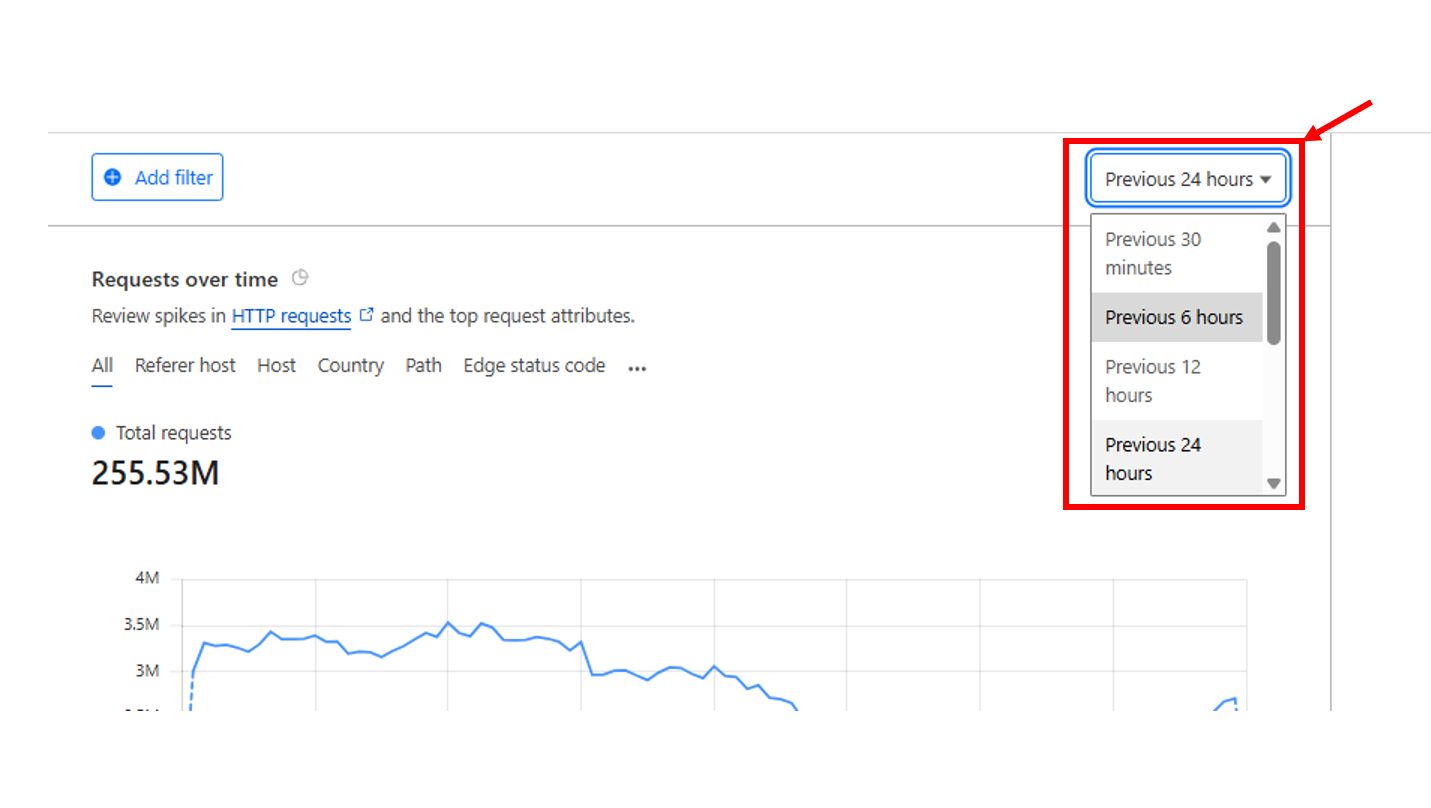
6. Select a Date Range

You can select from several pre-set time ranges or use custom dates for specific needs.

7. Customize Displayed Data

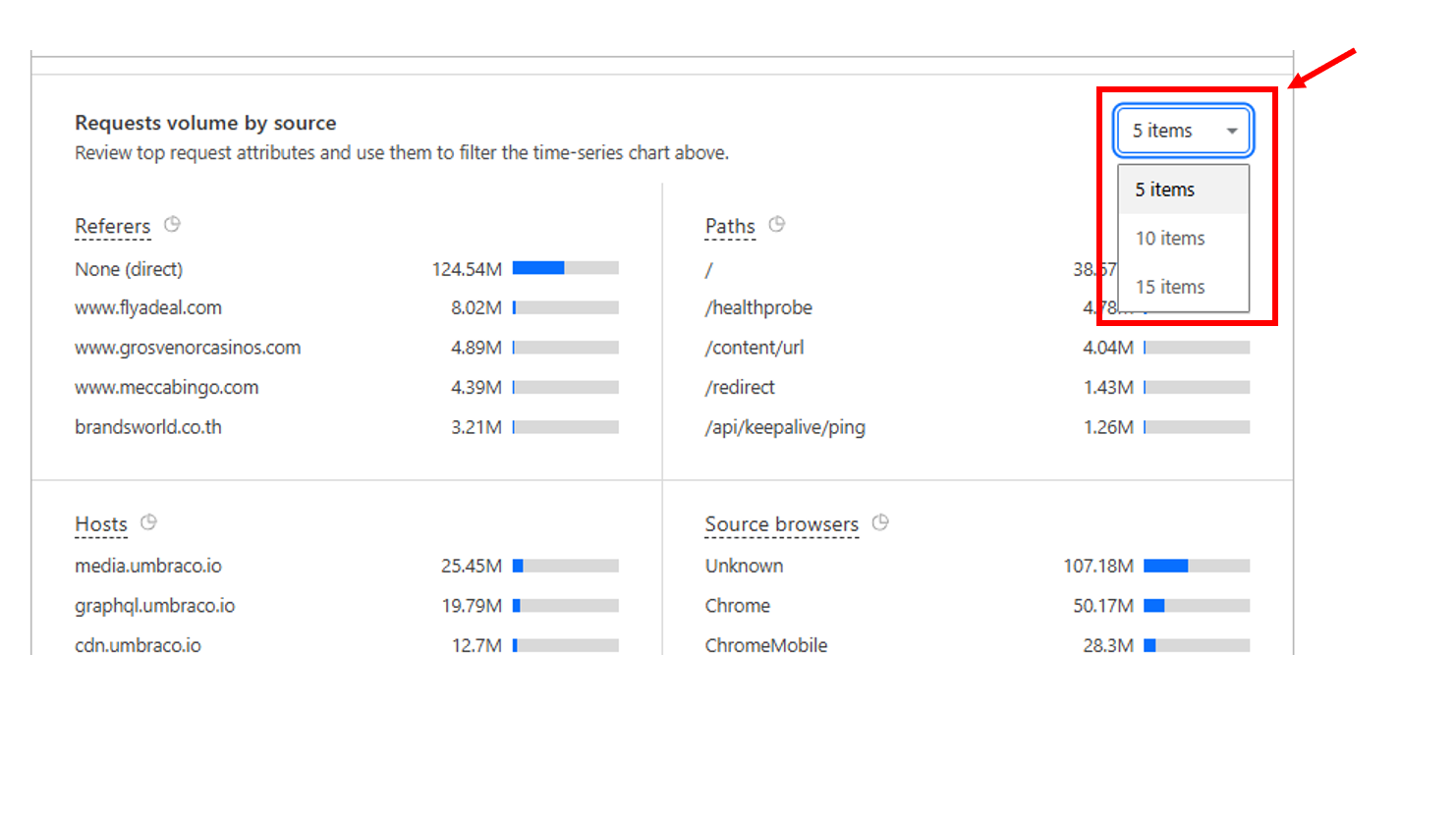
To give customers more insights, increase the number of displayed items from the default 5 to 15.

8. Downloading the Report

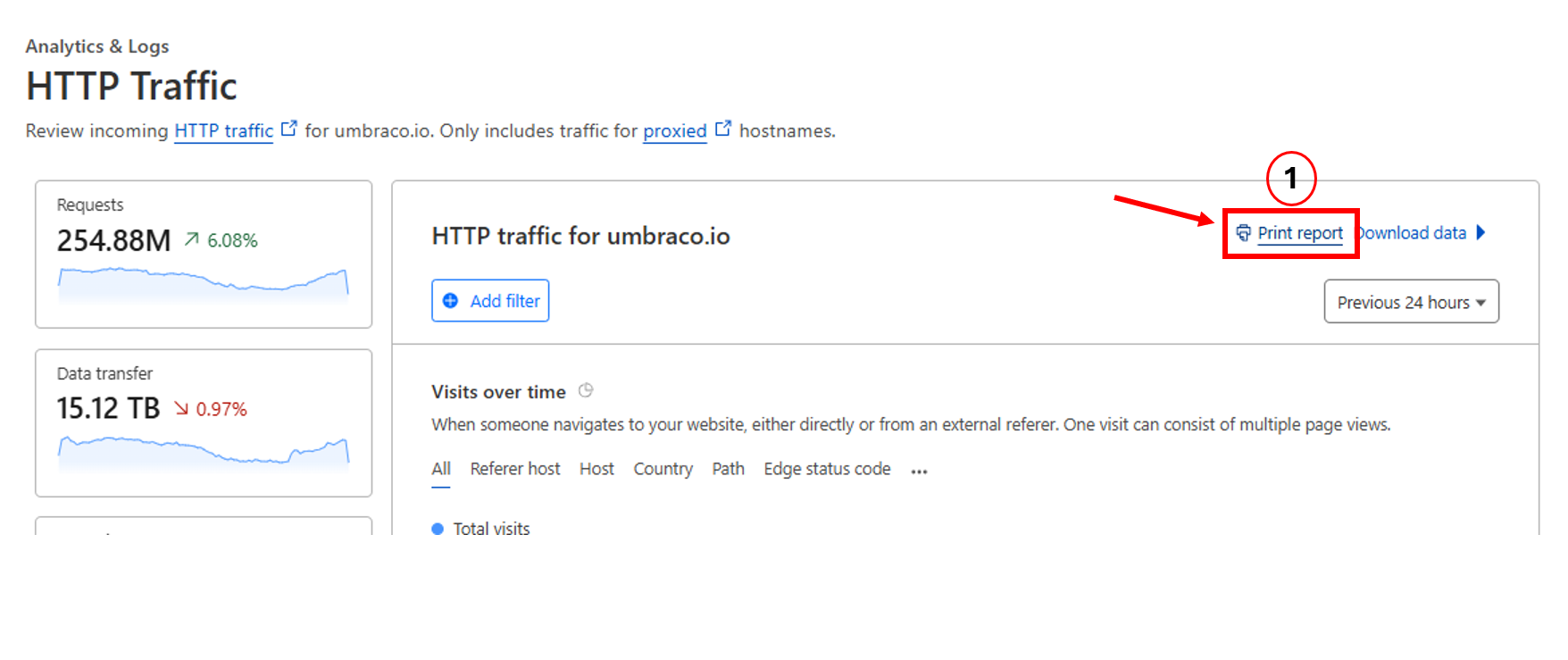
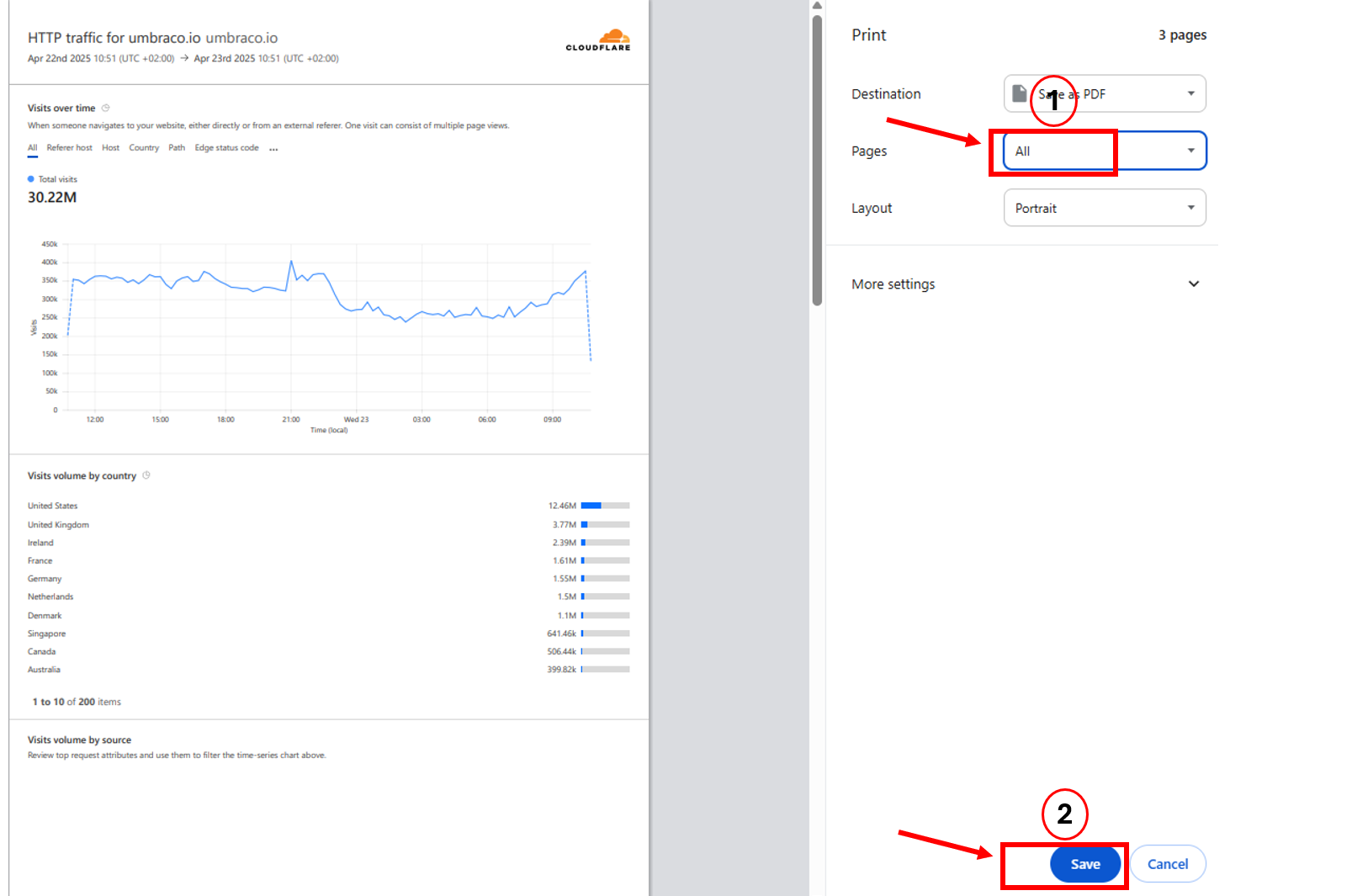
To save or share the report, click on the “Print report” button located in the upper-right corner of the screen.

Understanding the Key Report Metrics

Once you apply the filters and generate a report, you’ll see a set of key metrics that give insights into traffic and performance. Here’s a quick overview of each metric:

1. Requests

What it shows:
The total number of HTTP/HTTPS requests made to the website during the selected period. This includes all file types: HTML, CSS, JavaScript, images, etc.

Why it’s useful:
This gives an overall idea of how much activity your site is handling. A spike or drop could indicate a marketing campaign, bot traffic, or a performance issue.

2. Data Transfer

What it shows:
The total amount of data transferred from Cloudflare to the clients (end users). Measured in terabytes (TB).

Why it’s useful:
High data transfer may indicate large file sizes or high traffic. It can help identify optimization opportunities (e.g., compressing images or minifying files).

3. Page Views

What it shows:
The number of times pages were viewed by users. Unlike requests, which count all resources, this metric focuses on full-page loads.

Why it’s useful:
Page views are helpful for measuring user engagement and understanding how often your actual content is being accessed.

4. Visits

What it shows:
A "visit" typically starts when a user arrives on your website and ends after a period of inactivity or when the session expires.

Why it’s useful:
Visits give a more refined picture of user sessions and behavior. This metric is especially useful for marketing and performance analysis.
Analytics Categories in Cloudflare Reports

1. Referrers

  • Description: Lists the websites that directed traffic to your site.

  • Why It Matters: Helps you understand which external sources are driving visits. Useful for marketing performance and identifying valuable partnerships.

2. Paths

  • Description: Shows the most accessed URL paths on your site.

  • Why It Matters: Reveals popular pages, broken links, etc. 

3. Hosts

  • Description: Displays which hostnames (subdomains or domains) are receiving traffic.

  • Why It Matters: Essential for multi-domain environments. Helps you analyze traffic split across hostnames.

4. Source Browsers

  • Description: Breaks down the browsers visitors used to access your site.

  • Why It Matters: Ensures compatibility across major browsers and highlights browser-specific issues, we will not necessarily use this.

5. Source Device Types

  • Description: Classifies traffic by device: desktop, mobile, or tablet.

  • Why It Matters: Guides design choices, testing priorities, and user experience enhancements based on device usage trends. Once again, not necessarily used but it can help highlight a pattern. 

6. Source Operating Systems

  • Description: Displays the operating systems of visitors (Windows, iOS, Android, etc.).

  • Why It Matters: Helpful in identifying OS-specific bugs by looking at the most-used systems.

7. Source ASNs

  • Description: Lists the Autonomous System Numbers (ASNs), essentially the ISPs or corporate networks that users are coming from.

  • Why It Matters: Helps detect patterns such as attacks from specific providers or corporate access.

8. Source User Agents

  • Description: Shows detailed user-agent strings for browsers, bots, or tools.

  • Why It Matters: Identifies bot traffic, scrapers, or unexpected clients accessing your site.

9. Data Centers

  • Description: Shows which Cloudflare data centers served your traffic.

  • Why It Matters: Useful for understanding global reach and performance. Can help identify regional delays or load balancing issues.

10. Edge Status Codes

  • Description: HTTP status codes returned from Cloudflare's edge servers.

  • Why It Matters: Tracks error rates (e.g., 404s), redirects, and successful requests. Useful for debugging and traffic flow analysis.

11. Source IPs

  • Description: Displays the IP addresses responsible for the most traffic.

  • Why It Matters: Helps identify abusive IPs, bots, or unexpected high-traffic clients.

12. HTTP Versions

  • Description: Indicates the version of HTTP used by clients (HTTP/1.1, HTTP/2, HTTP/3).

  • Why It Matters: Reflects performance optimizations (e.g., HTTP/3 is faster). Also highlights if clients support newer protocols.

13. Cache Statuses

  • Description: Shows how responses were served: from cache (Hit), not cached (Miss), expired, or dynamic.

  • Why It Matters: Indicates caching effectiveness. High cache hits improve performance and reduce origin load.

14. X-Requested-With Headers

  • Description: Lists custom headers used in requests, often tied to frameworks or APIs (like XMLHttpRequest)

  • Why It Matters: Helps identify AJAX traffic, third-party tools, or suspicious/malicious requests.

Any bots on the site?

Sometimes, customers reaches out, having an issue with the amount of http requests to their site, compared to their "usual". 

This can sometimes affect bandwidth, analytics statistics for the site, as well as performance. 

Here are some things you can check, in order to determine whether there are bots / abnormal activity on a site: 

  • Analytics & logs → HTTP Traffic

  • Security → Analytics

HTTP Traffic

You can access this by following step 1-7 in Cloudflare reports. 

From here, let's take a closer look at the actual data in the report which you can download. 

Cloudflare_catchingbots.png

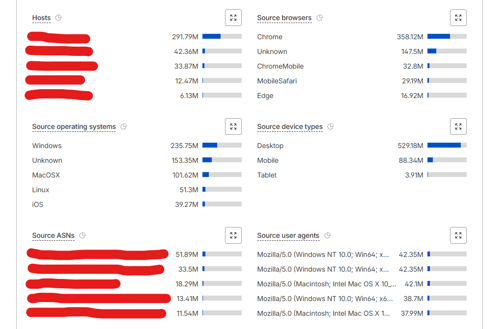
Generally, if there is a huge amount of "Unknown" (meaning that Cloudflare couldn't properly identify the traffic/request) on "Source browsers" and "Source operating systems", this can indicate bots on the site. 

Security Analytics

Although this looks different from our usual Analytics & logs, fear not. It works roughly the same way. 

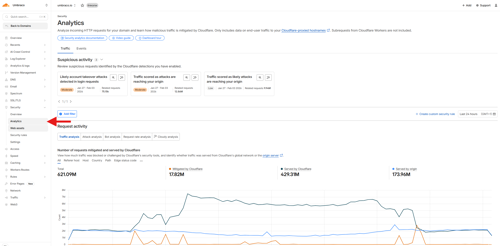
You can find it by going to Security → Analytics in the sidebar on Cloudflare.

Cloudflare_catchingbots2.png

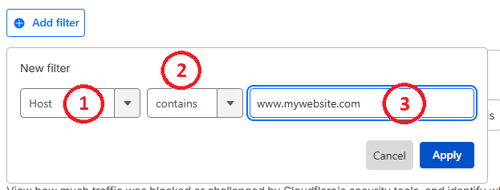
From here, you can add a filter to find the website which you would like to investigate.

Cloudflare_catchingbots3.png

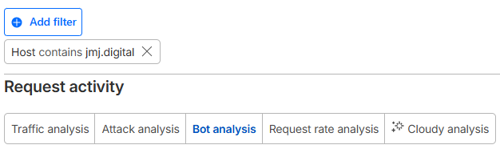
From here, you can request the correct data - you should select "Bot analysis".

Cloudflare_catchingbots5.png

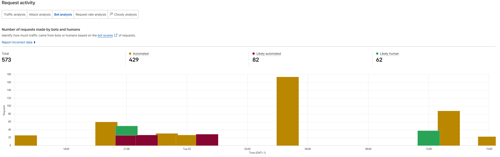
Once this is done, you will get a nice graph with the number of requests made by bots and humans. 

Cloudflare_catchingbots4.png

You are free to share this graph with the customer (I have talked with our dear Blackops about this) - as long as you do not share any ids of ours. 

Have fun!