Table of Contents

Employee Handbook

Holidays and Sickness

Workforce management platform

In the first day, you will be presented and become familiarized with our internal workforce management platforms Assembled as well as Zenergy

If you cannot access one or both of the platforms, please check your email for an invitation from Mathias. He should have already sent you the invitations.

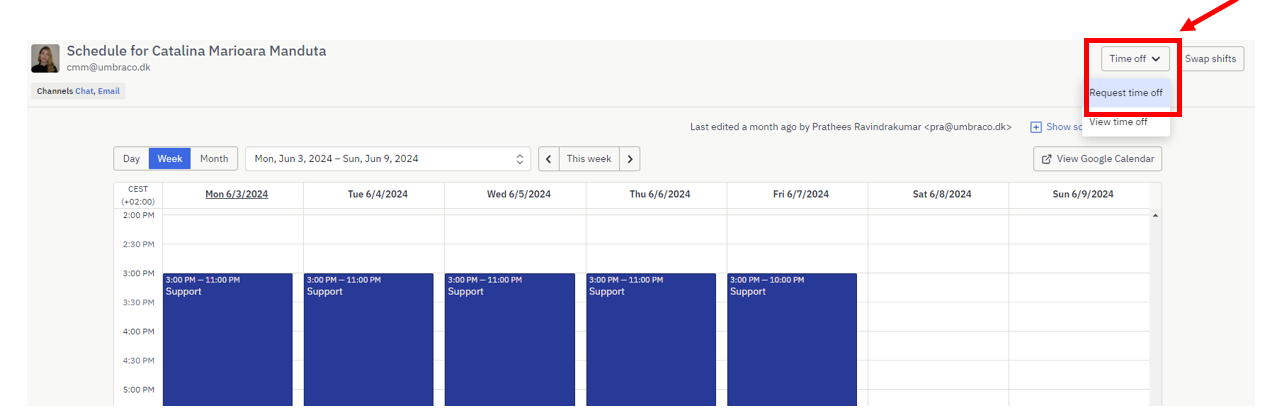
On Assembled, you can view your schedule, see your colleagues’ schedules, and request time off. You can navigate using the options in the upper left corner.
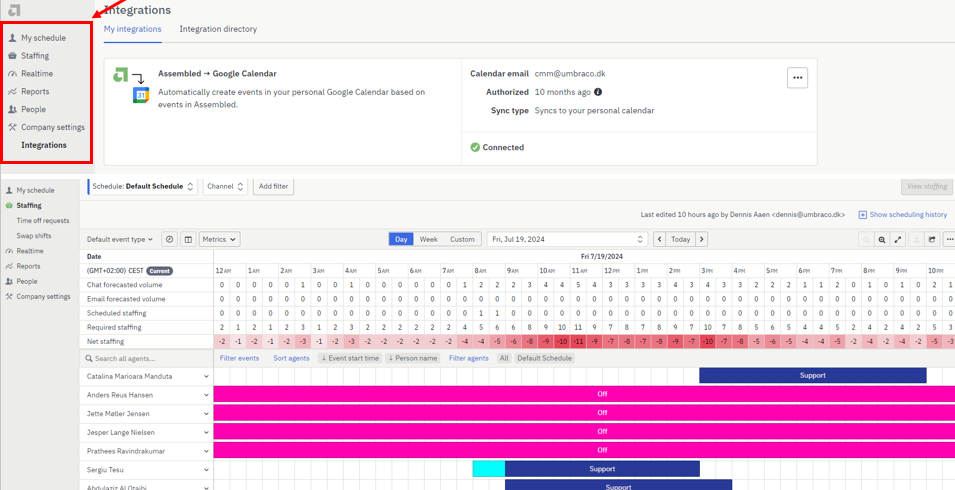
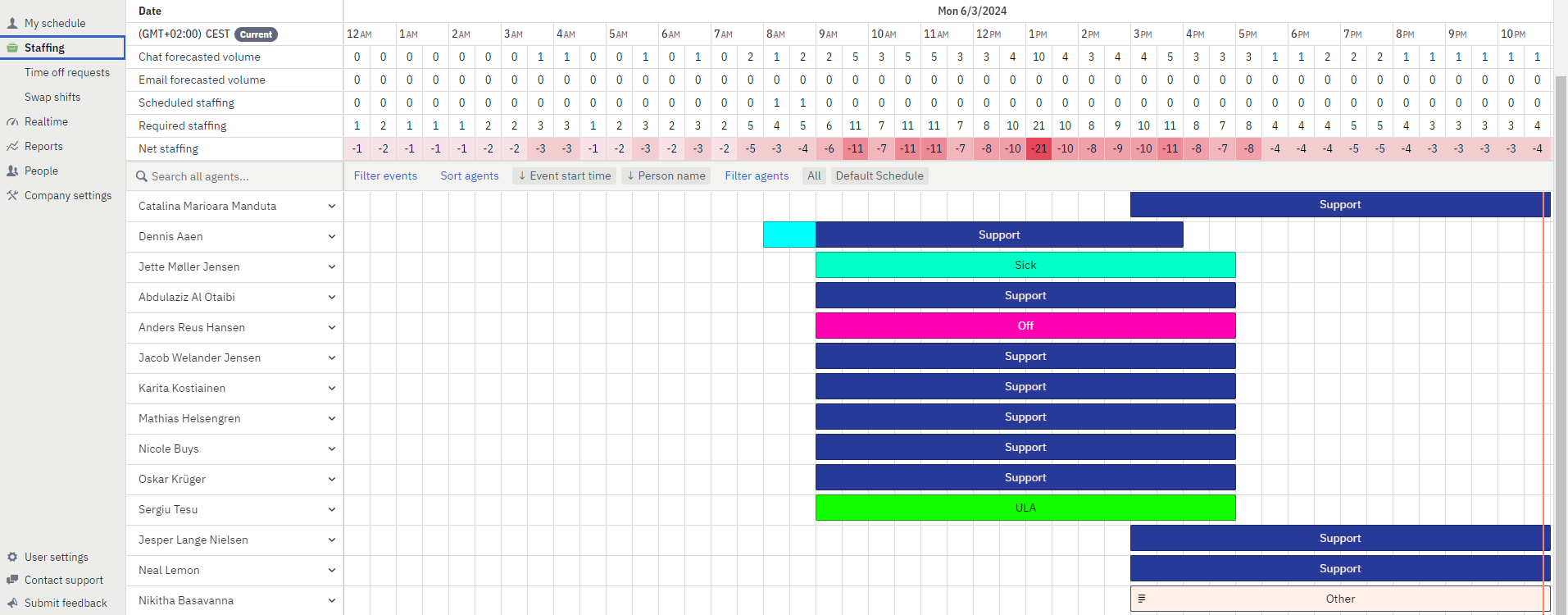
You will primarily use the staffing section, where you can see the number of people working on a particular day, who is sick, off, or engaged in activities not related to support. This information is important for assigning tickets, which you will learn about later.

Time off

If you require time off, click on the "Time Off" button in the upper left corner.

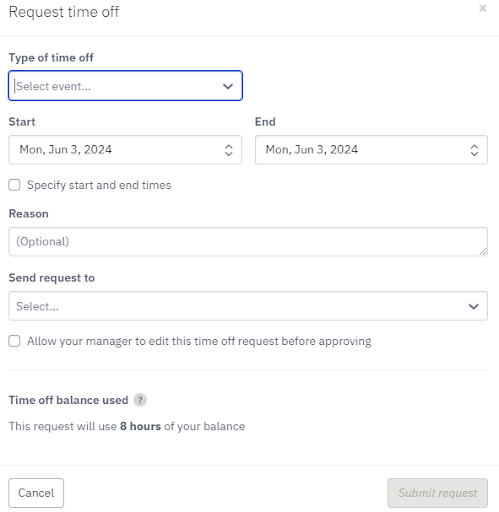
A new window will pop up where you'll need to fill out the type of time off, the time periods, and the person to send the request to. Choose your manager as the recipient of the request. The options for the type of time off include Child Care Day, Off, and Tiger Off.

Note

Omsorgsdag (Child Care Day): This is a designated day off for employees to take care of their children. Omsorgsdag allows parents to attend to their children's needs, whether it's for medical appointments, school events, or simply spending quality time together.

Tiger hours: Any overtime worked will be recorded as Tiger Hours, which can be redeemed for additional days off later. 

Zenergy

Zenergy is the platform where we check our payslips (salary) as well as where we declare Holiday & Absence days.

To register a holiday in Zenergy.

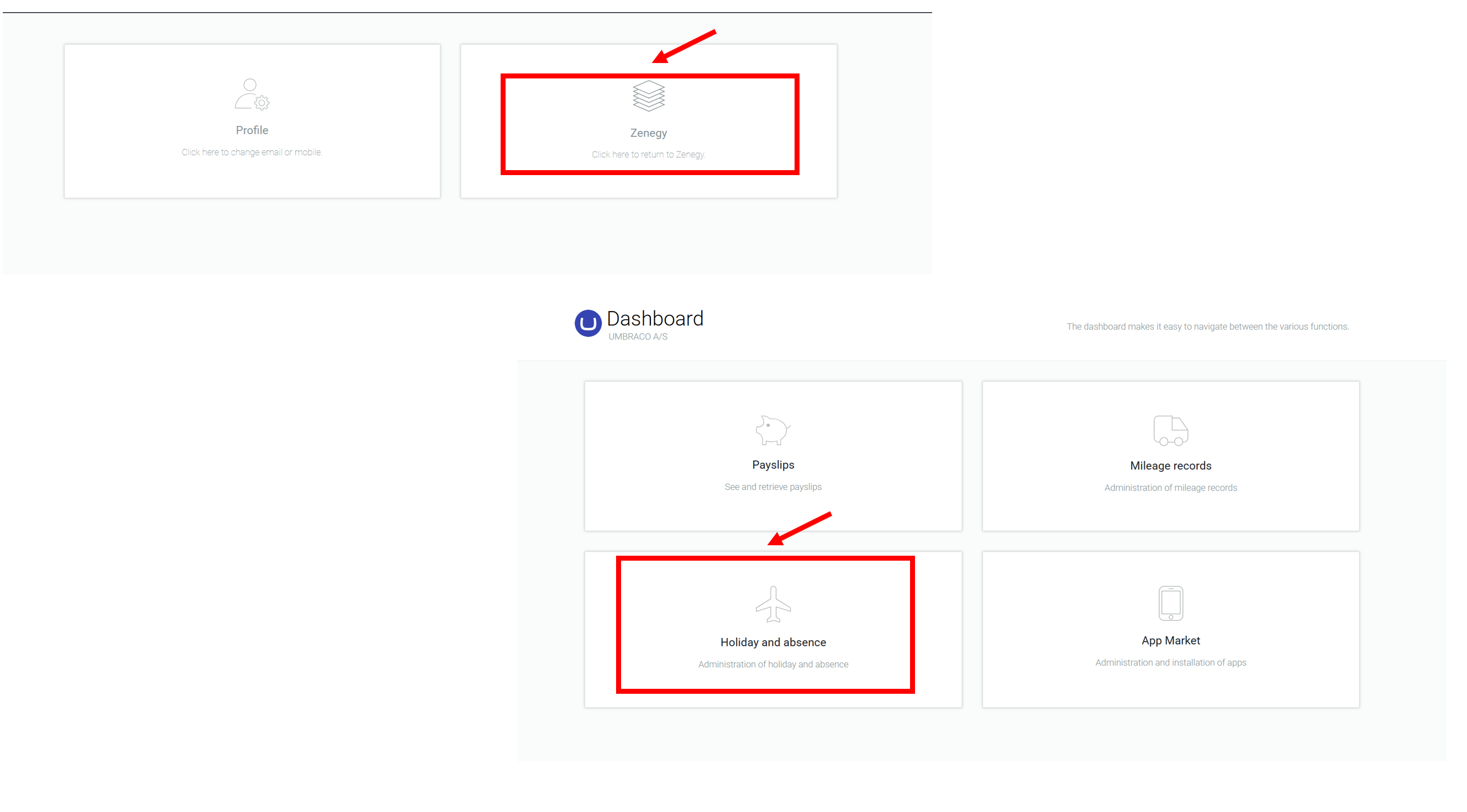
  1. Go to: https://app.zenegy.com/

  2. Go to Zenergy

  3. Click on "Holiday and Absence."

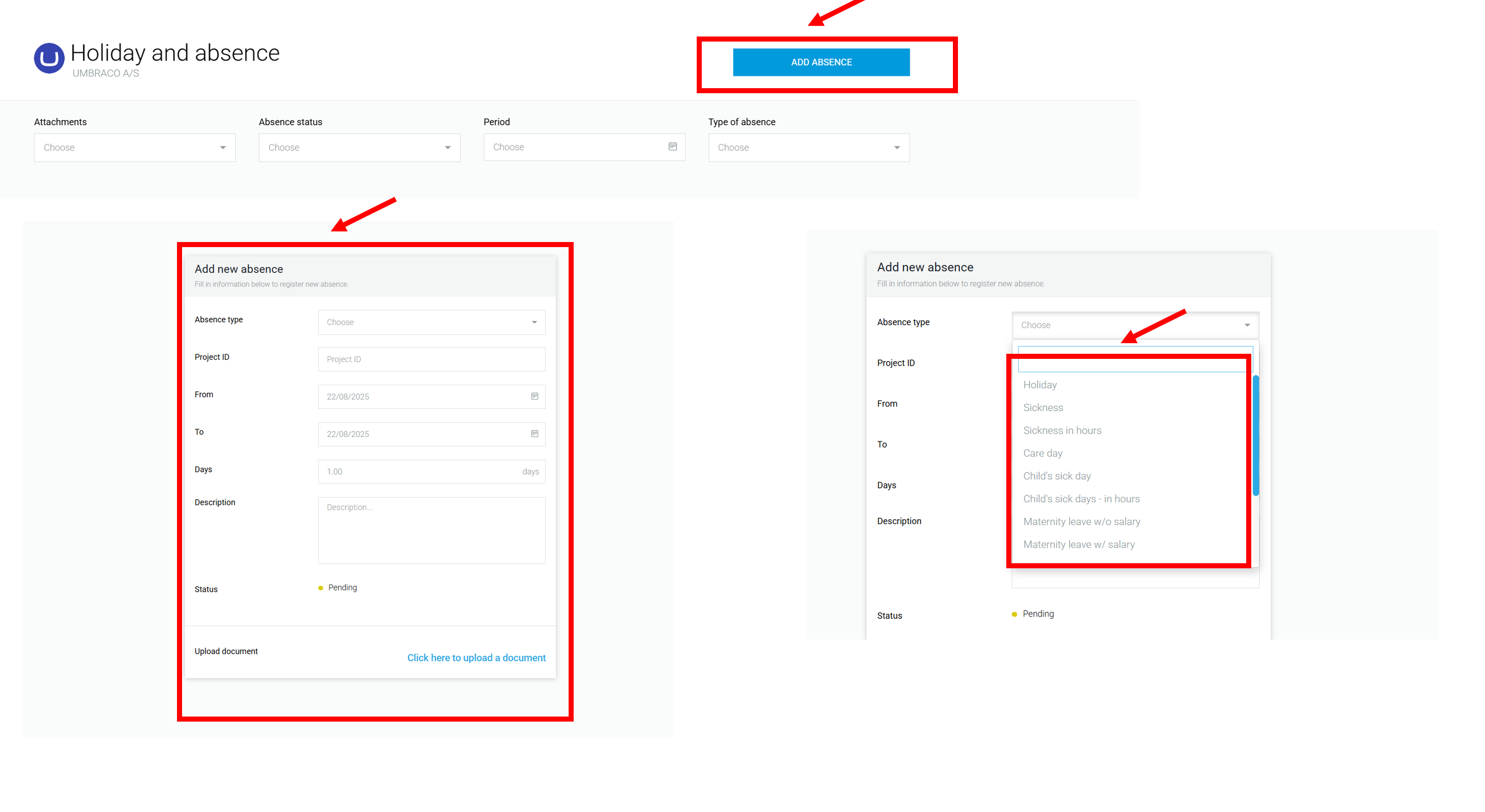
  1. Click on Add absence.

  2. A new window will pop up; here, you should fill out the Absence type, From, and To sections.

  3. Click "Save."

Sickday

If you are sick and unable to work:

  1. Send a message to your manager (or the to-go person if your manager is on holiday) the day before or no later than 07:00 on the sick day.

    • Use SMS for this notification.

  2. Once your manager confirms, the absence will be registered in Zenegy.

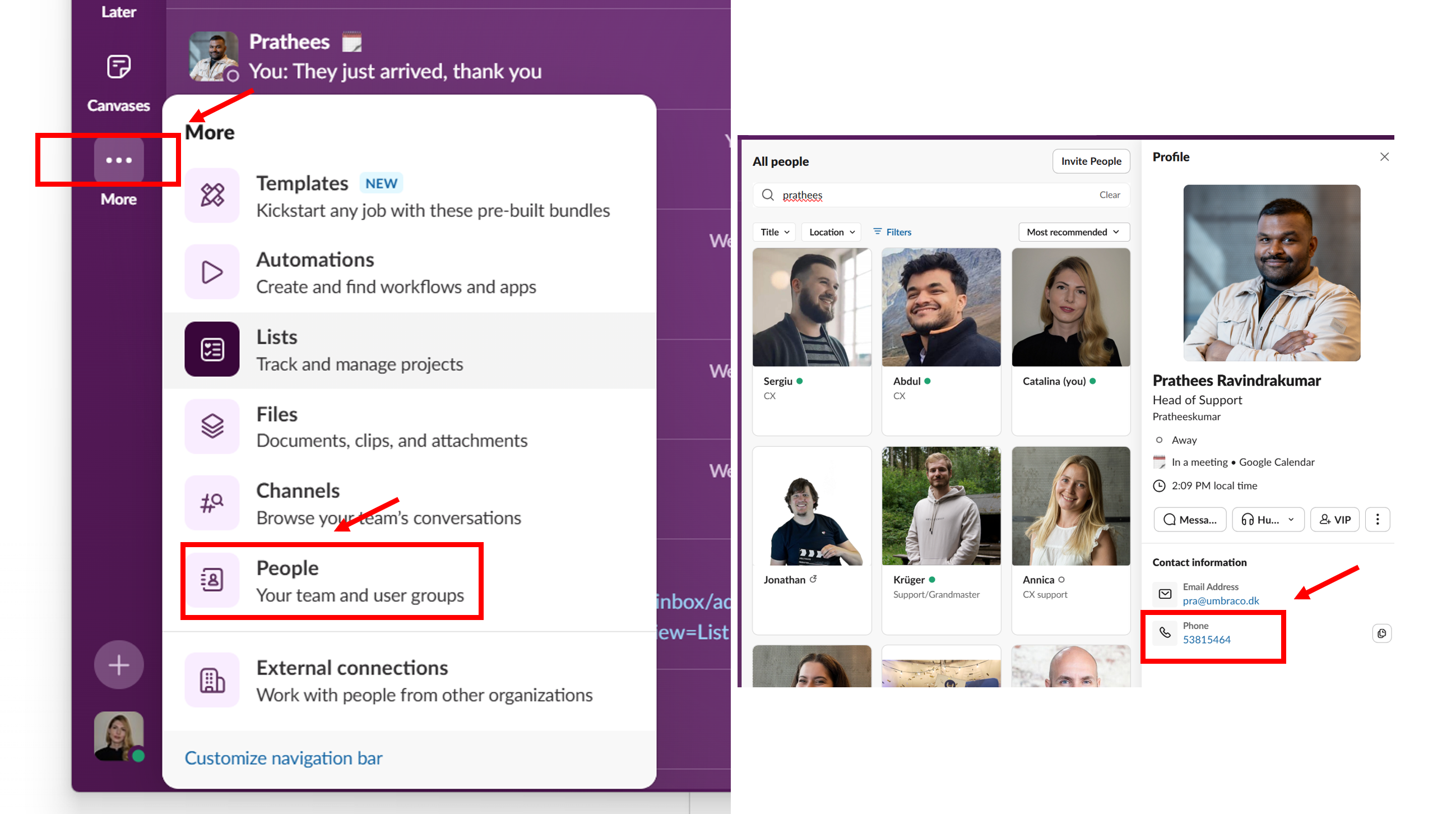
  3. You can find your manager’s phone number in Slack:

    • Go to More → People

    • Search for your manager’s or the to-go person’s name (see image below).

Note

Timely reporting helps us register your sick leave correctly and ensures smooth planning.

Tiger Hours

“Tiger hours” are accrued hours that employees can use as time off instead of receiving payment for overtime.

  • When you work extra hours, you may earn tiger hours.

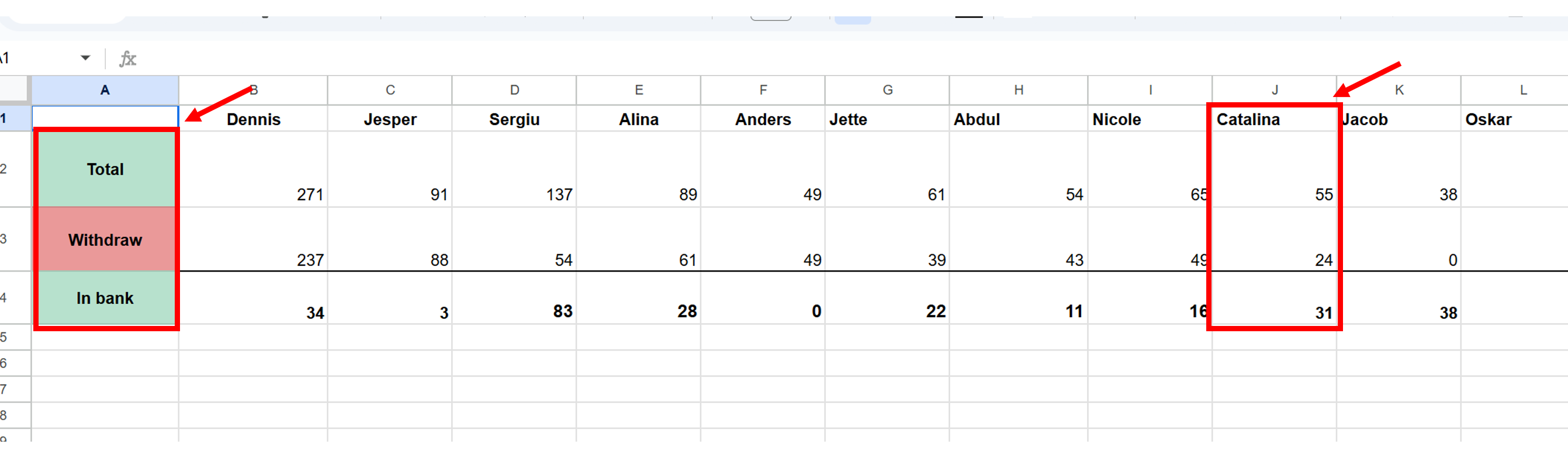
  • These hours are stored in your balance and can later be taken as compensatory leave. You can register your tiger hours here. under total.

  • When you want to use your tiger hours, submit a request in Assembled (see internal guide above).

  • Don’t forget to add the used tiger hours under Withdraw in the tracking file so your balance stays correct.

In simple terms: tiger hours = overtime worked that you can “save up” as time off later.

Resources

Support Documentation platform

You will be introduced to one of our best information sources, called the Internal Documentation Platform here

The platform has a lot of articles written by supporters, ranging from how to approach issues to step-by-step guides on solving them.

There's a lot of information there, so make sure to always use it.

Staff sheet

Show the CX staff sheet this contains information about the staff tiger hours, phone line, mostly.