Content deployment errors

The environment is busy with a deployment try again later

Environment is busy

Regarding the "The environment is busy with a deployment try again later", issue you should try the next steps:

1.      Restart the environment

2.      Run a manual extraction - You can find the documentation here: https://docs.umbraco.com/umbraco-cloud/set-up/power-tools/manual-extractions/

Troubleshooting failed content deployment on Umbraco Cloud

Introduction

Sometimes content transfer in Umbraco Cloud fails without giving you a useful error message. You've retried and found nothing in the logs, Slack, Intercom, or Google that points to the root cause. That’s when you need a more systematic checklist, to isolate the problem.

Restart and do a manual extraction, clear, and recreate the signatures

Why it matters:

  • Deploy uses cached signatures (hashed representations) of schema & content artifacts to speed up operations. Sometimes those signatures get out of sync (e.g. after upgrades, schema changes) or become corrupted. When that happens, Deploy may think something is unchanged (or changed incorrectly), leading to schema mismatches or silent failures.

Example

  • In one case, the schema files on disk weren't being updated correctly upstream. Clearing the cached signatures in the downstream environment, then re-setting them, allowed Deploy to recognize the new schema, and content transfer that was previously failing succeeded.

How:

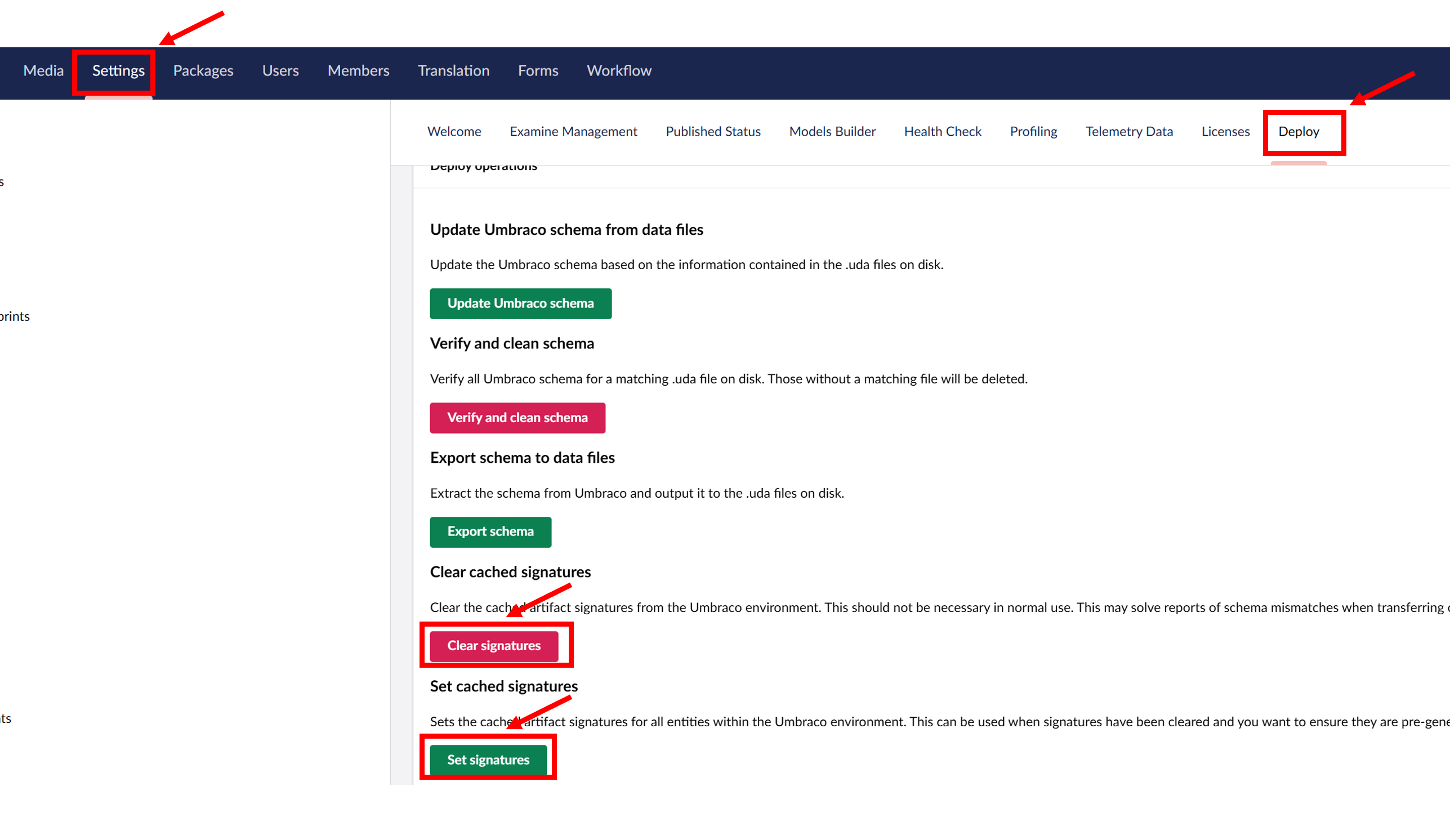
  • Log in to the Umbraco backoffice of the environment that’s failing.

    Navigate to Settings → Deploy → Dashboard.

  • Click Clear cached signatures. This removes the old/possibly corrupted signature data.

  • Then click Set cached signatures. This regenerates signatures for all entities, so the next content transfer or schema check uses an up-to-date representation.

  • Restart the environment to ensure everything’s clean (sometimes services or caches need a reset).

  • Finally, trigger the fresh content restore or content transfer to see if the problem is resolved.

Timeout on the environment in Kudu

Why it matters:

  • If the environment’s database connection times out, deploy operations can fail silently (or hang) because the system can’t maintain a connection long enough to complete the transfer.

Example:

  • A large content deployment stalls midway because the database disconnects due to an insufficient connection timeout setting. Once the timeout value is increased, the same deployment completes successfully.

How:

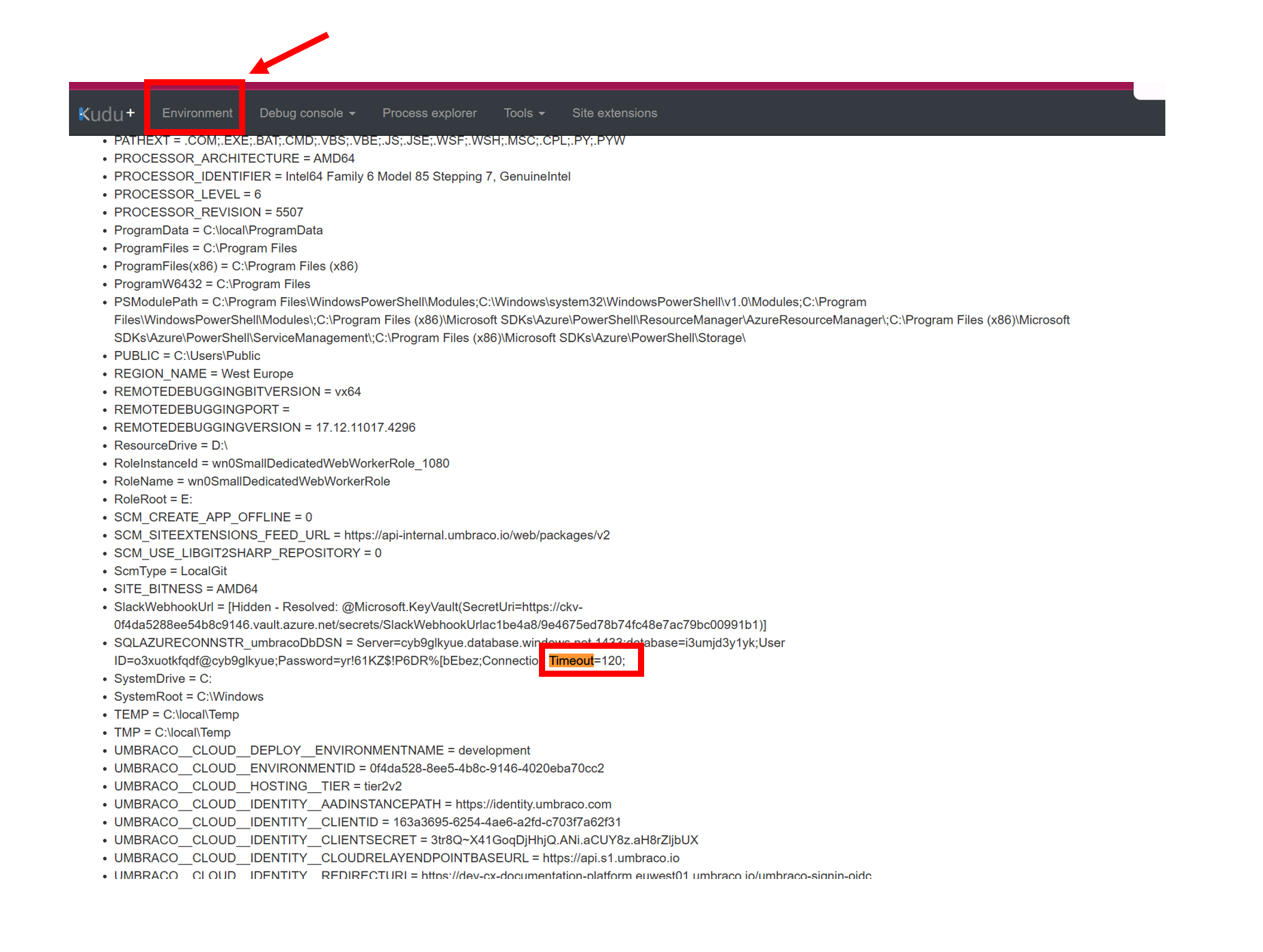
  • Open Kudu for the affected environment.

  • Go to the Environment tab. Use CTRL + F to search for “Timeout” or “Connection Timeout”.

  • Look for a setting like Connection Timeout=120;

  • If the value is lower (or missing/incorrect), request a change, create a BO ticket, so it can be updated.

Note

  • This issue tends to show up more in older projects.

  • Also check Umbraco Deploy’s timeout settings (e.g. DatabaseCommandTimeout, SourceDeployTimeout) because sometimes those need adjusting when transferring lots of content.

Extractions: schema from data file

Why it matters:

  • When the schema defined in .uda files (schema artifacts) does not match what’s in the SQL database (e.g. document types, templates, data types, compositions), content extraction or deploy operations can fail or stop partway, because the target environment doesn’t have the needed schema definitions.

Example:

  • One case: a doctype schema in a .uda file had a property that was added locally, but the SQL database in the target environment didn’t have that property. During deployment, the extraction failed mid-way because the system couldn’t map the missing property.

  • Usually, you get errors in the logs about this when the deployment failes; however, when this does not happen, you can see the error when you update the Umbraco Schema. 

How:

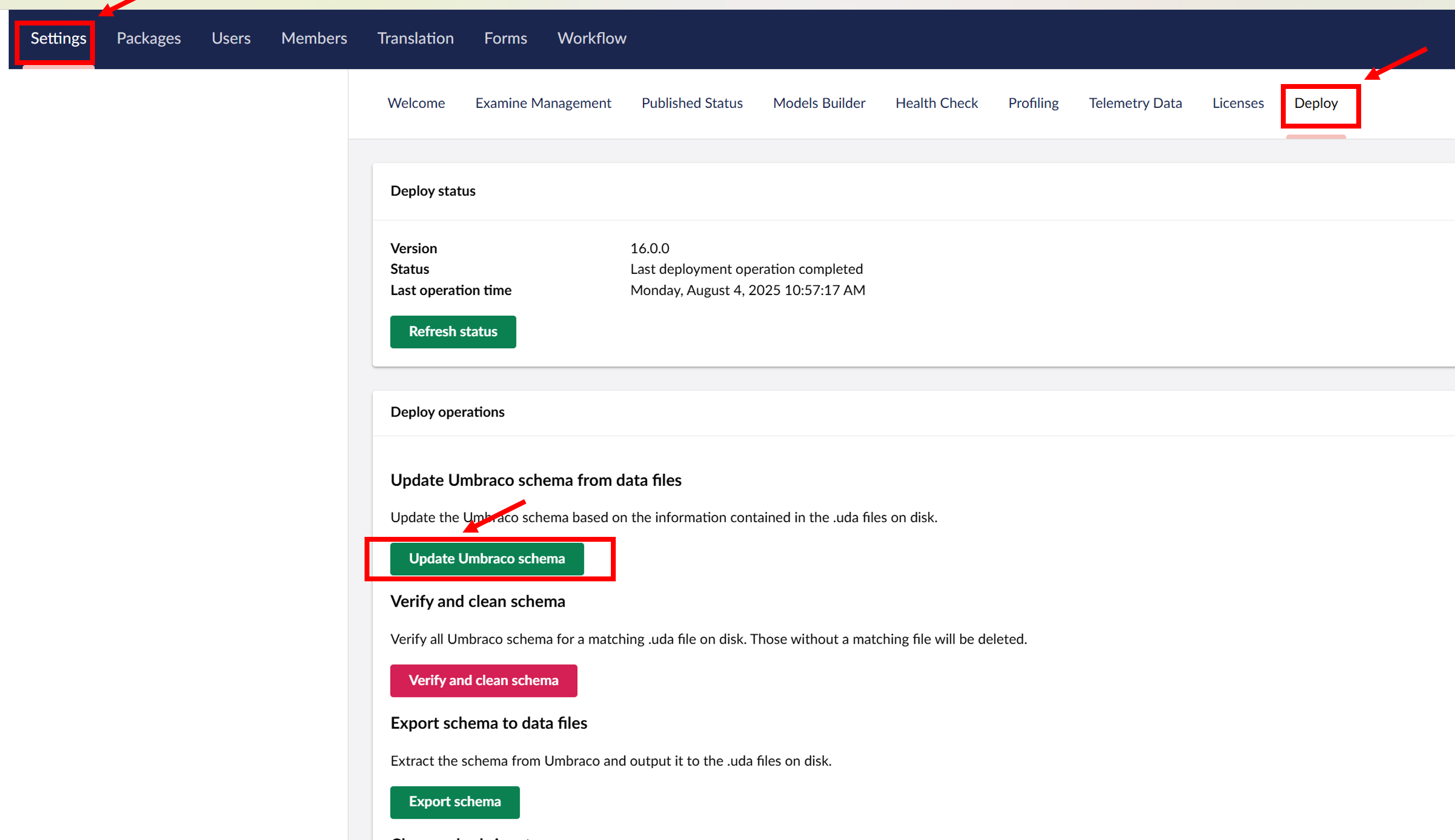
  • In the backoffice, navigate to the Settings - Deploy - Update Umbraco schema folder and compare schema files against the SQL database schema. If there are any errors related to schema, you can see them here. 

Note

Sometimes minor changes (e.g. editing description or re-saving a document type) force schema to re-serialize and can resolve mismatches.

Upgrade deploy always to the latest

Why it matters:

  • Older Deploy versions may contain bugs already fixed in newer versions.

Example:

  • A known bug in Deploy v10 caused media transfers to hang. Updating to the latest version resolved the issue instantly.

How:

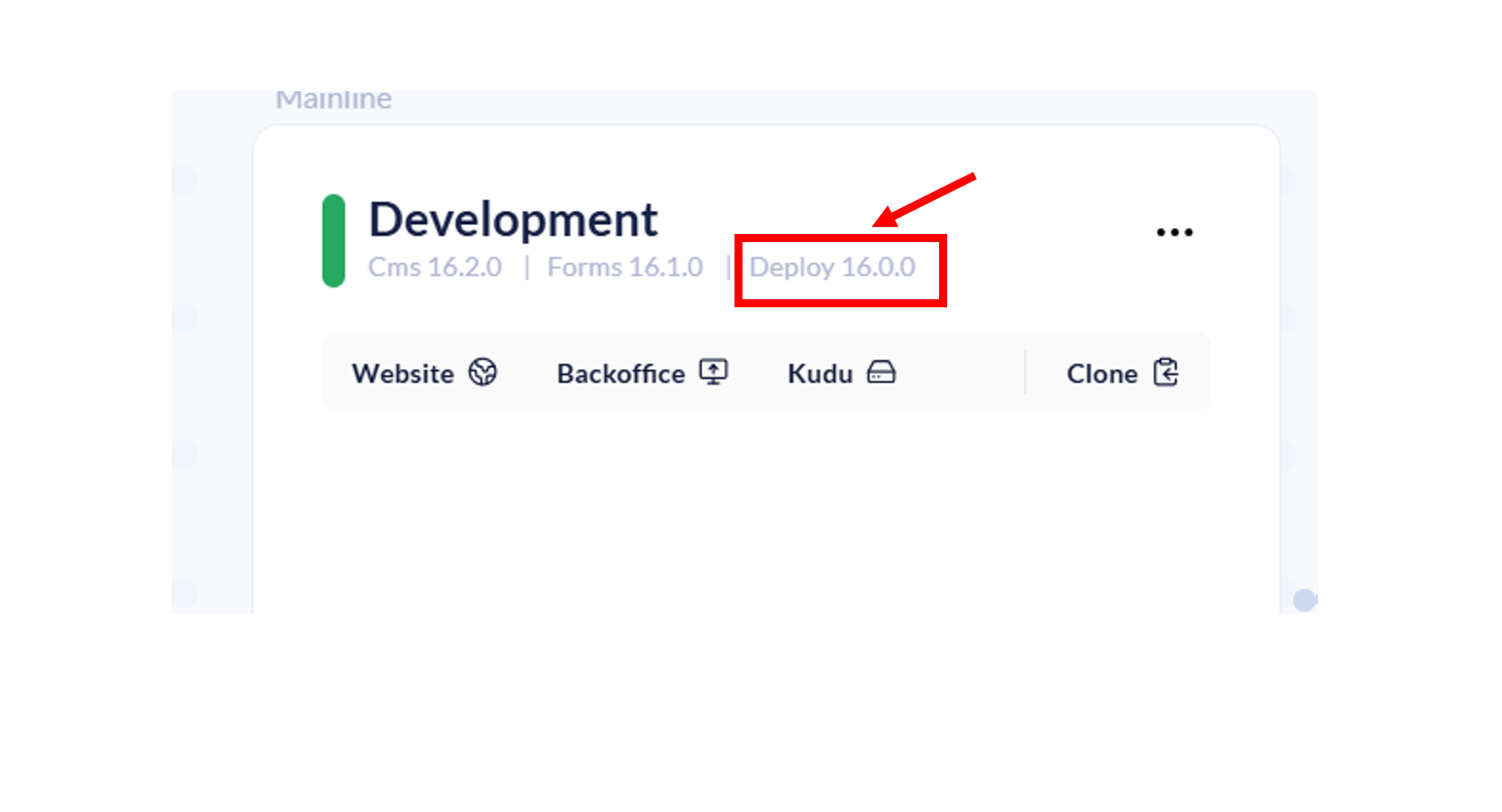
  • Check the installed Deploy version on the portal.

    Also, you can compare it with the Umbraco Release notes: https://docs.umbraco.com/umbraco-deploy/release-notes, to see if any of the errors you are encountering have been solved.  If outdated, please ask the customer to upgrade to the latest.

Check rewrite rules and temporary disable them

https://docs.umbraco.com/umbraco-cloud/set-up/project-settings/manage-hostnames/rewrites-on-cloud

Why it matters:

  • Rewrite rules can interfere with Umbraco Deploy endpoints—especially ones under /umbraco/deploy or related paths. If a rule “catches” or redirects those paths, Deploy or content transfers may be blocked or misrouted. According to Umbraco Cloud’s docs, you should always include a condition to exclude the Umbraco backoffice path (/umbraco) in your rewrite rules so deployment operations don’t get blocked. However, the customer do not always do that, so the deployment may fail because of this.

Example:

  • A site had a “redirect all non-www to www” rule, or a catch-all redirect for non-HTTPS traffic. Because the rewrite didn’t exclude /umbraco, Deploy endpoint requests were redirected away. Deploy couldn’t communicate backoffice properly, and content transfer failed with no obvious error.

How:

  • Open the project in Kudu . Inspect web.config to see if they defined any rewrite rules there. These can be found here: C:\home\site\wwwroot> 

  • Look in <system.webServer><rewrite><rules> for rules that match everything (.*). Check if they exclude /umbraco (or /umbraco/deploy).

  • If if you do not see any of the above, ask the customer to temporarily disable or comment out custom rewrite rules, just to check out if any of their rewrites could interfere in any way with the transfer, and try triggering the content deployment again.

  • If Deploy succeeds with rules disabled, then ask the customer to adjust the rule(s).

Check for rewrites in Kudu/dev, not just in web.config

  • Why it matters:
    Rewrite rules can be defined or transformed in multiple places. Even if you fix the web.config, there might be other configs, transform files, or environment-specific settings that still apply rewrites. If some rewrite is still active somewhere, it can silently interfere with Deploy endpoints or how content transfers behave.

  • Example:
    You edit web.config to exclude /umbraco/deploy, but deployment is still failing. On inspecting via Kudu under /dev, you find a transform file or another config file (e.g.iisrewrite.web.live.xdt.config or similar) that re-introduces a rewrite-rule you didn’t know about. Once that file is fixed or disabled, the deploy works.

  • How:

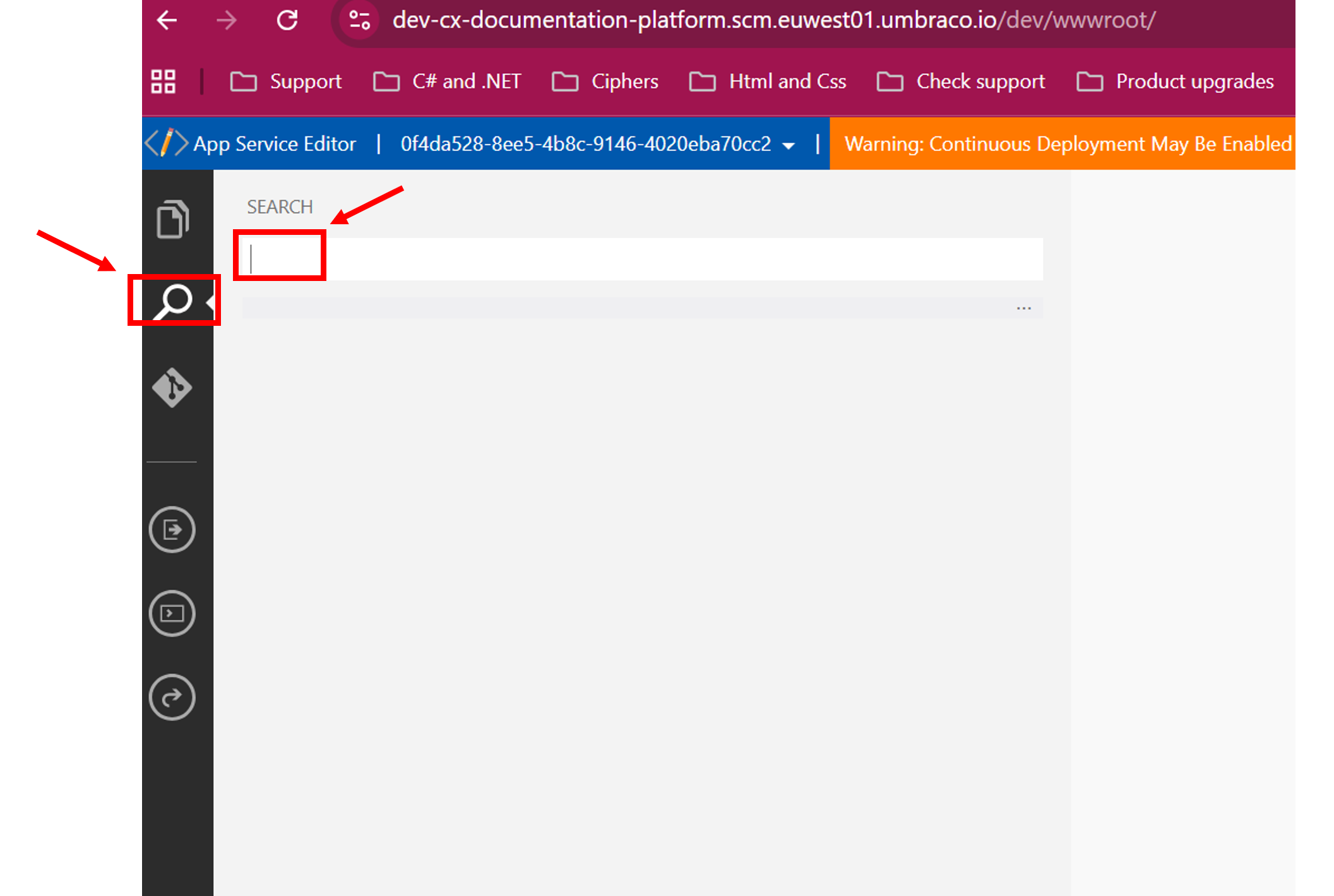
    1. Go to the Kudu site for the environment. Use the URL like https://project-name.scm.euwest01.umbraco.io/dev.

    2. Use the search functionality in Kudu and search for “rewrite” (or “rule”, “redirect”, etc.). This helps you locate any files containing rewrite rules beyond web.config.

    3. Look for config transform files (e.g. .xdt.config) that might apply rewrite rules for specific environments.

    4. If you find additional rewrite rules in these other files, ask the customer to temporarily disable or comment them out and retry the content deployment.

Note

When you search here, you are searching in the wwwroot of the project (https://dev-cx-documentation-platform.scm.euwest01.umbraco.io/dev/wwwroot/). If, for some reason, you want to search in the repository, access this instead: https://project-name.scm.euwest01.umbraco.io/dev/repository/

Check the appsettings files

Check any unusual settings in the appsettings files for both appsettings.json as well as the appsettings file specific for the environment (appsettings.Development.json, appsettings.Production.json): https://docs.umbraco.com/umbraco-deploy/deploy-settings

  • Why it matters: Misconfigured appsettings can break deployment silently.

  • Example: A stray comment in JSON caused the deploy process to fail because JSON doesn’t allow comments.

  • How: Open appsettings.json in Kudu. If you’re unsure about the configuration, compare it against the appsettings.json file from one of our own Umbraco Cloud projects running the same version (e.g., if the customer is on v16, open one of our v16 projects and compare).

Check project and environment IDs in Deploy configuration

  • Why it matters:
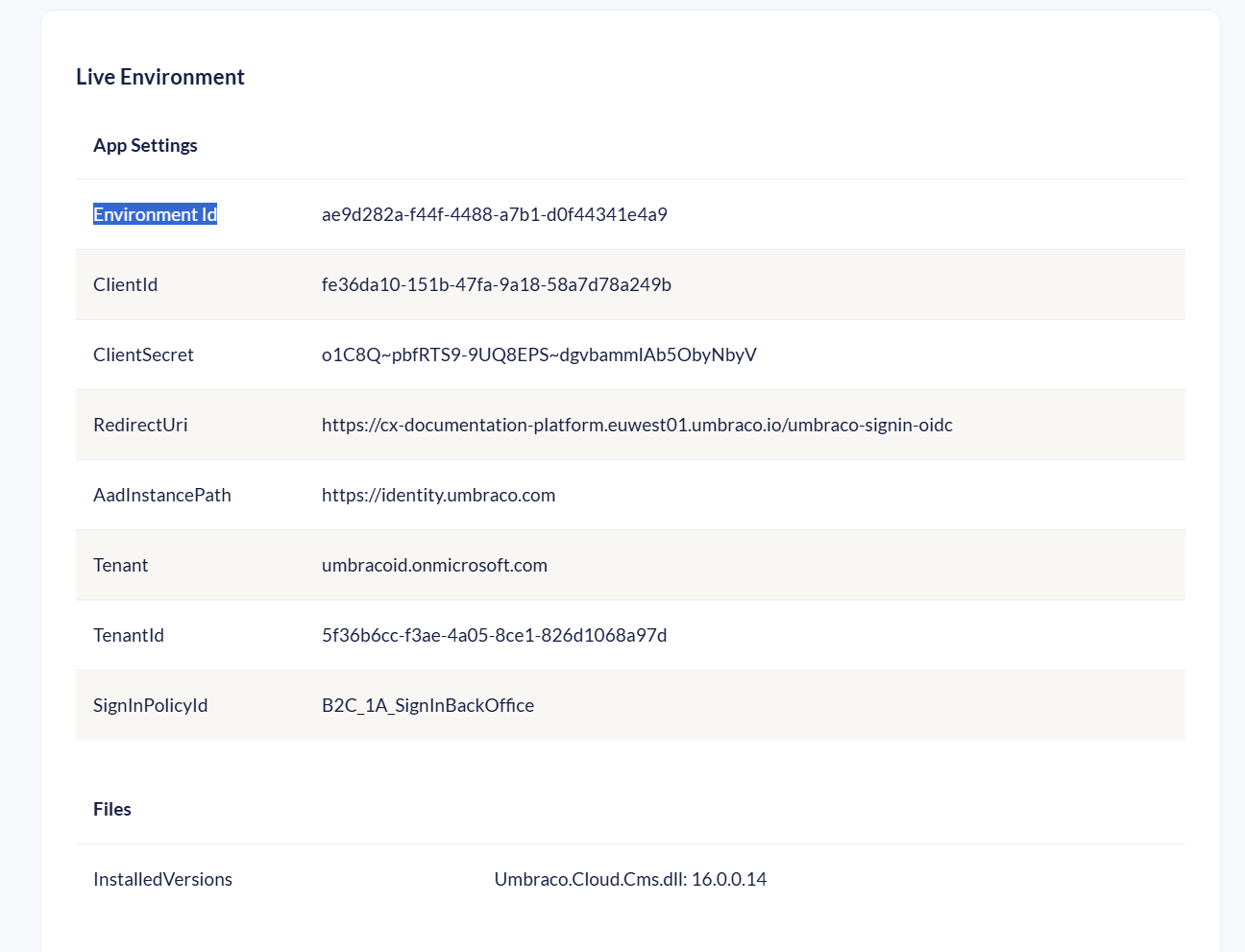
    It defines which Project you are working in, which workspace/environment you are in (Development, Live, etc.), and which API keys / identity settings are used for authentication/authorization. If any of those are wrong, deployment or connections can fail, end up in wrong environment, or be rejected.

  • Mistakes here can lead to deploying schema or content to the wrong workspace/environment, or having authentication failures (Deploy can’t connect properly), or mismatched IDs causing errors.

  • Example:
    You expect content to go from Staging → Live, but because the WorkspaceId in appsettings points to a Dev workspace, changes end up in a dev workspace. Or, deployments fail because the system doesn’t match the environment alias it sees in the cloud portal.

  • How:

  1. Locate the file

    • In Kudu for the affected environment, find and open umbraco-cloud.json, this is usually here: C:\home\site\wwwroot> 

  2. Compare project identifiers

  3. If you’re unsure

    • Take another project with the same version (for example, v16), open its umbraco-cloud.json, and compare all IDs and values side by side.

    • Differences may immediately highlight misconfiguration.

  4. Check Git remote upstream

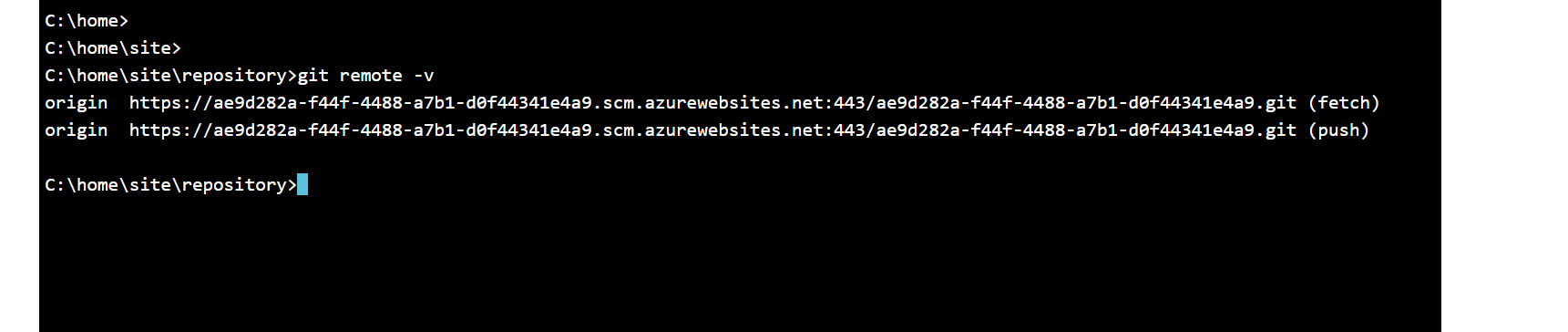
  • The git remote settings determine where your commits and pushes are being sent. If the remote is wrong (pointing to the wrong environment), schema changes might go to Dev instead of Live (or vice versa), or not go anywhere useful.

  • To check this go to: C:\home\site\repository>

  • Here write  C:\home\site\repository>git remote -v

  • This will show you from which environments you pull and push.

Check if the issue is valid for just one content node or every

Why it matters:

  • Knowing whether the problem is isolated (just one node) or broad (many or all nodes) helps you understand whether it’s a content-item issue (corrupt node, missing reference, broken property) or a more global/configuration/deployment issue (schema, permissions, rewrite rules, etc.).

Example:

  • If only one node fails, it could be a corrupt content reference. If all fail, it’s usually a config or deploy setup issue.

How:

  • Choose a single content node that is known to fail when deployed.

  • Try deploying just that single node (without its children) and observe whether it succeeds or fails.

  • Then try deploying multiple nodes, or the parent node with all children, etc., to see if scale/volume makes a difference.

  • Compare outcomes:
     - If the single node deploys successfully but larger sets fail → likely volume / timeout / dependency issues.
     - If even a single node fails → more likely something specifically wrong with that node (e.g. missing template, broken relation, invalid data).

Make a copy of a particular content node and try transferring that just to pinpoint the issue

  • Why it matters:
    Testing with a duplicate helps prove whether the problem lies in the node itself (e.g. broken references, corruption) rather than in global settings, templates, or deployment logic.

  • Example:
    You duplicate the problem node and deploy only the copy. The copy succeeds even though the original fails—this reveals that something specific to the original node (like a missing media item or bad relation) is causing the failure.

  • How:

    1. In Umbraco backoffice, locate the content node that fails to deploy.

    2. Duplicate this node (without children first, if possible).

    3. Trigger a deployment of just the duplicated node.

    4. If the duplicate is transferred successfully, you know the failure is tied to the original node.

    5. Once the cause is identified, ask the customer to replace it with the duplicate.

Try transferring only one node (with no children) to rule out volume issues

  • Why it matters:
    Transferring many items (especially nodes with many children, media, relations, etc.) can hit platform limits, timeouts, high memory or CPU usage, or dependency-resolution overhead. Testing with a single, childless node checks whether the failure is caused by sheer size/volume rather than some other misconfiguration.

  • Example:
    A parent content node with 500+ child nodes failed during transfer (timed out or stalled). But transferring one of the leaf nodes (with zero or few children) works. That suggests the problem isn’t the node itself but the volume of content being moved.

  • How:

    1. In the backoffice, pick a node that is failing to transfer.

    2. Duplicate or select a childless version (or remove the children temporarily).

    3. Trigger a transfer / deploy just for that single childless node.

    4. If it succeeds, gradually increase the number of children (or size of content) to see at what point it fails. That helps locate the threshold.

    5. If volume is the issue, consider using batch settings in Umbraco Deploy (e.g. SourceDeployBatchSize or PackageBatchSize) to split the transfer into smaller chunks.

A message example about this that you can send to the customer would be:

There are two things that we can start with implementing. the first is expanding the timeout settings in appsettings.json; SessionTimeout, SourceDeployTimeout, HttpClientTimeout. Docs: https://docs.umbraco.com/umbraco-deploy/getting-started/deploy-settings#timeout-settings However, there is also an operations time limit set by Azure of 4 minutes. This means that if you are transferring big or many nodes they may still time out. We can improve this by implementing batch-size settings. Docs: https://docs.umbraco.com/umbraco-deploy/getting-started/deploy-settings#batch-settings. Here is an example of the settings. These settings must be added to both the source and target environments to work.

"Deploy": {
"Settings": {
"SessionTimeout": "0.0:59:00",
"SourceDeployTimeout": "0.0:59:00",
"HttpClientTimeout": "0.0:59:00",
"DatabaseCommandTimeout": "0.0:59:00",
"SourceDeployBatchSize": 100,
"PackageBatchSize": 100
}
}

Once you have added those, let me know how it goes!
Clone the project locally and use import/export to test schema consistency

When you clone down the project and you build it, you can see sometimes underlying issues. Also, you can try restoring content to see if there are any errors popping up. If you encounter the same error when trying to restore, you can try the Import/Export feature. 

Why it matters:
Running export/import locally helps rule out issues that are specific to the Umbraco Cloud instance (e.g. environment config, permissions, deployment restrictions), so you can isolate whether the issue is due to schema, content, or the cloud setup.

  • Example:
    You clone the cloud project locally. You run an export of schema & content, then import that into a fresh instance. If everything works locally, but fails on Cloud, you know the issue lies with the cloud environment rather than the schema or code.

  • How:

    1. Clone the project to your local machine.

    2. Use Umbraco Deploy’s import/export feature to export schema from your cloud project: https://docs.umbraco.com/umbraco-deploy/deployment-workflow/import-export#:~:text=The%20import%20and%20export%20feature,update%20the%20Umbraco%20data%20there.

    3. Then import that export into your local project, checking for errors, warnings about missing schema dependencies, etc.

    4. Compare the results:
       • If the schema is consistent and no transfer issues locally, then the problem is likely specific to the cloud environment.
       • If you see the same errors locally, you know the issue is with the schema/content itself.